
Every image on the web is a file in some format, and that format decides how big the file is, how sharp it looks, whether it can be transparent or animated, and whether the person you send it to can open it at all. Pick the wrong one and you get a blurry logo, a photo that takes ten seconds to load, or an upload form that refuses your file.
This guide covers the formats you will actually meet: JPG, PNG, GIF, WebP, AVIF, HEIC, SVG and JPEG XL, plus older ones such as BMP and TIFF. Each section explains what the format is for in plain language, then how it works technically, for readers who want to know why it behaves the way it does. The comparisons use real files that we encoded for this article, so every size you see was measured, not guessed.
The short answer: which format should you use?
Start with what the image contains, then think about where it will be opened.
Photos on a website
AVIFWebPJPG
AVIF and WebP are the lightest at similar quality. Keep a JPG as the fallback for anything that cannot open them.
Photos for email, chat or an upload form
JPG
Every app, printer and website opens JPG. It is the safe choice when the file leaves the browser.
Logos, icons and charts
SVGPNG
SVG stays sharp at any size and is tiny. Use PNG when an app does not accept SVG.
Screenshots and text on flat colors
PNGWebP (lossless)
Lossless formats keep text edges clean. JPG leaves a haze around letters.
Anything with transparency
PNGWebPAVIF
These have a real alpha channel. JPG cannot be transparent, and GIF only allows fully on or fully off.
Short animations
MP4 or WebM videoWebPGIF
Video is far lighter than GIF. Animated WebP is the middle ground. Use GIF only where nothing else works.
iPhone photos that will not open elsewhere
JPG
iPhones save HEIC by default. Convert it to JPG for Windows, older apps and most websites.
Print, scans and editing masters
TIFFPNG
Both are lossless. Keep the original camera file, and never edit a copy that was already saved as JPG if you can avoid it.
How image files work: the five ideas behind every format
Formats look complicated, but they differ along only five dimensions. Once you know these, every format in the next section is easy to place.
Pixels or shapes: raster and vector
A raster image is a grid of colored dots, called pixels. A photo is raster: 12 million pixels, each with its own color. The grid has a fixed size, so enlarging it means inventing pixels, and the result looks soft or blocky. JPG, PNG, GIF, WebP, AVIF and HEIC are all raster formats.
A vector image stores instructions instead: draw a circle here, a curve there, fill it with this color. The browser draws those shapes at whatever size you need, so edges stay sharp from a favicon to a billboard. SVG is the vector format of the web. Vector files cannot describe a photograph in any useful way, because a photo has no shapes to describe.
SVG, drawn at 192 px

48 px PNG, enlarged to 192 px
The same icon twice. The SVG file is 981 bytes and is redrawn crisply at the larger size. The PNG is 1093 bytes at 48 pixels wide, and the browser has to stretch it, so it turns soft.
Lossy or lossless
A lossless format lets you get back exactly the pixels you put in. PNG, GIF and lossless WebP work this way. Think of a ZIP file: smaller, but nothing is missing when you open it.
A lossy format deliberately throws away information the eye is least likely to notice, such as tiny color differences and very fine texture, and keeps the rest. JPG, lossy WebP and AVIF work this way. The files are much smaller, but the discarded detail is gone for good.
Lossy saving has a catch: it compounds. Open a JPG, edit it, save it as JPG again, and you lose a little more each time, which is called generation loss. Keep your original, and always export from it.
Color depth and palettes
Most images use 8 bits for each of the red, green and blue channels, which allows about 16.7 million colors. Some formats reduce this on purpose: GIF and PNG-8 use a palette of at most 256 colors. That shrinks flat graphics, but turns the smooth gradients in a photo into visible steps.
Going the other way, 10-bit and 12-bit images (AVIF, HEIC, TIFF and 16-bit PNG) store smoother gradients and the wider brightness range used by HDR screens. If you only post to the web at normal brightness, 8-bit is enough.
Transparency
Transparency is stored in an extra channel called alpha. An 8-bit alpha channel gives 256 levels of opacity, which is what lets a logo with a soft shadow sit on any background. PNG, WebP and AVIF have it. GIF only has one bit: a pixel is either fully visible or fully transparent, so edges look jagged on a different background. JPG has no alpha channel at all.

PNG
Transparency kept
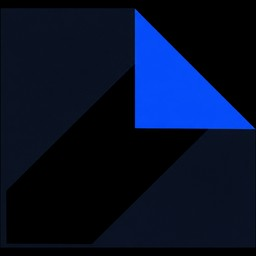
JPG, filled with black
4.5 KiB
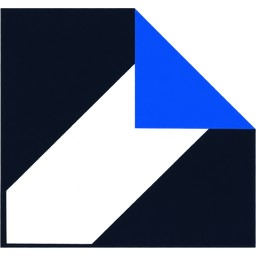
JPG, filled with white
6.9 KiB
One transparent logo, three results. A JPG has to put something behind the transparent pixels. When a converter simply drops the alpha channel, whatever color was hiding behind it shows up, which is often black. This is why a PNG sometimes turns black when converted.
Metadata and color profiles
Image files carry more than pixels. EXIF metadata records the camera, the date, the orientation and often the GPS location where a photo was taken. That is useful in a photo library and a privacy risk on a public website. A missing or ignored orientation tag is also why some photos appear sideways in certain apps.
An ICC color profile says how to interpret the numbers as colors. The web assumes sRGB. Photos from newer phones and cameras may use a wider range of colors, such as Display P3. If an app ignores the profile, those images look dull or oversaturated. When in doubt, export for the web in sRGB.
The formats, one by one
JPEG (JPG)
At a glance: lossy, no transparency, no animation, 8-bit color, opens everywhere. Standardized in 1992, and still the most widely used photo format.
JPG is built around one idea: human eyes notice brightness changes much more than color changes, and notice fine detail less than broad shapes. The encoder exploits that in six steps.
1Split brightness from color
RGB values are converted to one brightness channel (Y) and two color channels (Cb and Cr).
2Subsample the color
Color is stored at lower resolution. With the common 4:2:0 setting there is one color sample for every four brightness samples.
3Cut into 8×8 blocks
The picture is divided into small squares that are processed independently.
4Transform each block
A discrete cosine transform turns 64 pixels into 64 frequencies, from broad patterns to fine detail.
5Quantize
Frequencies are divided and rounded, so fine detail becomes zero. This is the only lossy step, and the quality slider controls it.
6Entropy-code
The remaining numbers are packed with Huffman coding. This step is lossless.
Those same steps explain every JPG flaw. Working on 8×8 blocks causes blocking, visible squares at low quality. Discarding fine detail near sharp edges causes ringing, a faint haze around letters and outlines. Subsampling color causes color bleeding on thin saturated lines. And because the quality setting is a rounding rule, it scales: going from quality 80 to 95 did not make our test photograph slightly bigger, it made it 47% larger, from 138 KiB to 203 KiB, for a difference most people cannot see.
A progressive JPG stores the picture in passes, so it appears blurry first and sharpens as it loads. JPG tops out at 8 bits per channel and has no alpha channel.
Use it for: photographs, anything that must open on any device, email attachments, upload forms and print shops. Avoid it for: logos, screenshots, text, line art and anything that needs transparency.
PNG
At a glance: lossless, full transparency, optional animation (APNG), 1 to 16 bits per channel. Created in the mid-1990s as a free replacement for GIF.
PNG does not throw anything away. Before compressing, it runs each row of pixels through a filter that predicts a pixel from its neighbors (the options are None, Sub, Up, Average and Paeth) and stores only the difference. Flat areas and smooth gradients turn into long runs of zeros. Then DEFLATE, the same compression used in ZIP files, packs the result.
That is why PNG is brilliant for graphics and poor for photos. A screenshot has huge areas of identical pixels and repeating patterns. A photograph has sensor noise in every pixel, which prediction cannot remove. Our test photograph was 1.01 MiB as a PNG and 138 KiB as a JPG at quality 80, about 7.5 times larger.
PNG has three color layouts: grayscale, true color, and indexed color with a palette of up to 256 entries (often called PNG-8). Any of them can carry an alpha channel. Indexed PNG is how tools such as pngquant shrink flat graphics: our test graphic fell from 43 KiB to 17 KiB with a 64-color palette. That step is lossy, because colors are merged, but the format itself is unchanged.
Animated PNG (APNG) lets a PNG hold several frames, and every major browser plays it. The latest edition of the PNG specification adds it officially, together with HDR color signalling and Exif metadata.
Use it for: screenshots, interface graphics, diagrams, text, logos that cannot be SVG, images with transparency, and editing masters. Avoid it for: photographs on web pages.
GIF
At a glance: lossless per frame, but limited to 256 colors, 1-bit transparency, animation. Created in 1987 and still everywhere.
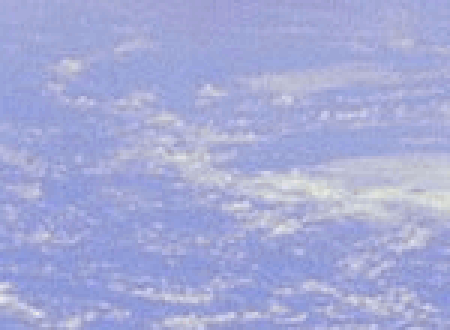
GIF compresses with LZW, a dictionary method, on a palette of at most 256 colors per frame. Version 89a added animation and one transparent color. For a flat cartoon, that is fine. For a photograph, 256 colors is far too few, so the encoder dithers, which means mixing dots of different colors to fake the in-between shades. The result is the grainy look you can see below.
Original pixels
enlarged 3×
GIF, 256 colors
enlarged 3×
The same part of our test photograph, enlarged. The GIF has visible grain where the smooth blue had to be approximated with a limited palette.
The file is also large: 455 KiB as a GIF against 138 KiB as a JPG. Animation makes the gap bigger, because GIF stores each frame almost on its own, while video codecs store only what changes between frames. A short clip as MP4 or WebM is usually a small fraction of the size of the same clip as GIF, and animated WebP or AVIF also beat it.
Use it for: simple low-color animations and reactions, where compatibility matters more than size. Avoid it for: photos, long animations and anything with soft transparent edges.
WebP
At a glance: lossy and lossless modes, full transparency, animation, 8-bit. Released by Google in 2010, and now supported by roughly 96 percent of browsers.
WebP is really two formats in one file type. The lossy mode is built from the key-frame coding of the VP8 video codec. Instead of coding each block on its own like JPG, it first predicts each block from the pixels already decoded next to it and codes only the leftover difference, then transforms and quantizes that difference. A deblocking filter smooths block edges afterwards. The lossless mode is a separate design, using prediction, color transforms and LZ77 with Huffman coding. Both modes can store transparency, so one format can replace JPG, PNG and GIF.
Google’s own study found lossy WebP files to be 25 to 34 percent smaller than JPG at the same SSIM score, and lossless WebP to be 26 percent smaller than PNG. Our single photograph is a small sample, but it points the same way: at quality 80, the WebP was 84 KiB against 138 KiB for the JPG, 39% smaller.
The limits are modest. Lossy WebP uses 4:2:0 color only, the maximum width or height is 16,383 pixels, and some older editors, email clients and upload forms still do not accept it. If a WebP will not open somewhere, you can convert WebP to JPG or WebP to PNG.
Use it for: nearly everything on a modern website. Avoid it for: files that will leave the browser for unknown apps.
AVIF
At a glance: lossy and lossless, full transparency, animation, 8 to 12 bits, HDR. Finalized in 2019 and supported by about 93 percent of browsers.
AVIF stores a single frame of the AV1 video codec inside the same kind of container that HEIC uses. AV1 was designed by the Alliance for Open Media to be royalty-free and to beat older codecs, and for still images it usually delivers the smallest files of any widely supported format. It can also use full-resolution color (4:4:4), 10-bit and 12-bit depth, and HDR color signalling.
The trade-offs are time and texture. Encoding AVIF is much slower than JPG or WebP, and decoding takes more processing power, which matters on slow phones. At low quality, AVIF tends to smooth away fine grain instead of showing blocks, so skin and fabric can look waxy. Browsers have supported it since Chrome 85, Firefox 93 and Safari 16.4.
Use it for: photographs on websites, with a WebP or JPG fallback. Avoid it for: the only copy of an image you plan to share or edit.
HEIC and HEIF
At a glance: lossy, 10-bit, can hold many images in one file, supported mainly on Apple devices. The default iPhone photo format since iOS 11 in 2017.
HEIF is a container standard for images and image sequences. HEIC is HEIF with the pictures compressed by HEVC, also known as H.265. HEVC compresses very efficiently, so a HEIC photo is commonly about half the size of an equivalent JPG. One file can also hold the Live Photo frames, the depth map for portrait mode, and wide-color 10-bit data.
The problem is licensing. HEVC is covered by patent pools, so most browsers do not decode HEIC, and Windows needs an extra component. That is why a photo that looks fine on your iPhone fails on a website or in an older app. You have two fixes: on an iPhone, open Settings, then Camera, then Formats, and choose Most Compatible, or convert HEIC to JPG. Converting keeps the picture but drops the Live Photo motion, depth data and location.
Use it for: storing photos on an Apple device. Avoid it for: websites, email, and sharing with people on other platforms.
SVG
At a glance: vector, text-based, any size, transparent, animatable with CSS. A W3C standard since 2001.
An SVG file is plain text describing shapes: paths, circles, text, colors and gradients. A simple icon is a few hundred bytes, and it is sharp on a phone and on a 5K monitor. It can be styled with CSS, recolored for dark mode, and animated, and the text inside stays selectable for accessibility. Servers also compress SVG very well, because it is text. Google Search can index SVG images.
SVG is wrong for photographs. A traced photo needs thousands of tiny shapes and ends up larger than a JPG. Two cautions apply: an SVG can contain scripts, so never embed an SVG from an untrusted source without sanitizing it, and text in a logo may render in a fallback font on a computer that lacks the font, so convert text to outlines before you export.
Use it for: logos, icons, illustrations, charts and diagrams. Avoid it for: photographs and complex textures.
JPEG XL
At a glance: lossy and lossless, transparency, animation, HDR, up to 32 bits, progressive decoding. Standardized in 2022 as the successor to JPEG.
JPEG XL aims to do everything: better compression than JPG, a lossless mode that competes with PNG, and a unique ability to recompress an existing JPG without any loss, typically saving around a fifth of the size and restoring the original file bit for bit. It also decodes progressively and handles very large images and HDR.
Browser support has moved in steps. Safari added decoding in version 17. Chrome dropped its experimental support in 2023, then announced in October 2026 that decoding ships from Chrome 155. Firefox has been adding support as well. Support is changing quickly, so check Can I use before relying on it, and keep a fallback in another format.
Use it for: archives and sites that can serve fallbacks. Avoid it for: files you need everyone to open today.
Older and specialist formats
You will still run into these, mostly outside web pages.
| Format | What it is | When you meet it |
|---|---|---|
| BMP | Microsoft’s bitmap format, usually uncompressed | Old Windows software and screenshots. Files are huge, so convert them. Google Search can index BMP, but nobody should serve it. |
| TIFF | A flexible container: lossless or JPEG compression, 8 or 16 bits, CMYK, many pages | Print, scanners, photography archives and mapping. Browsers do not show it. |
| ICO | A container holding several icon sizes | Favicons and Windows icons. Modern sites usually use PNG or SVG for favicons. |
| RAW (CR3, NEF, ARW, DNG) | Sensor data straight from a camera, usually 12 to 16 bits per pixel | Professional photography. You edit it, then export JPG or TIFF. |
| APNG | Animated PNG | Browsers play it. It sits inside PNG and uses the same file extension. |
Image formats compared
This table puts the main formats side by side. “First released” is when the format or its standard first appeared.
| Format | First released | Compression | Transparency | Animation | Best for |
|---|---|---|---|---|---|
| JPG | 1992 | Lossy | No | No | Photos, universal sharing |
| PNG | 1996 | Lossless | Full alpha | APNG | Screenshots, graphics |
| GIF | 1987 | Lossless, 256 colors | 1-bit | Yes | Simple animations |
| WebP | 2010 | Lossy or lossless | Full alpha | Yes | Web photos and graphics |
| AVIF | 2019 | Lossy or lossless | Full alpha | Yes | Smallest web photos, HDR |
| HEIC | 2017 on iPhone | Lossy | Yes | Image sequences | Storing photos on Apple devices |
| SVG | 2001 | Text (vector) | Yes | Via CSS or script | Logos, icons, diagrams |
| JPEG XL | 2022 | Lossy or lossless | Full alpha | Yes | Future archives, progressive loading |
What our tests show
Specs describe what a format can do. A real file shows what it does. We encoded two images with the same encoders that run in many browsers and servers, and measured the results.
Test 1: a photograph
The first chart shows the same 960 × 960 pixel photograph saved seven ways. The percentages compare each file with the JPG at quality 80.
- PNGlossless1.01 MiB+653%
- WebPlossless712 KiB+417%
- GIF256 colors455 KiB+230%
- JPGquality 95203 KiB+47%
- JPGquality 80138 KiB
- WebPquality 8084 KiB−39%
- AVIFquality 6074 KiB−46%
File size of one photograph. Lossless formats and GIF are many times larger than lossy ones. The uncompressed image would be 2.64 MiB.
Two things stand out. Lossless saving costs a great deal on a photograph: the PNG is 12 times the size of the WebP. And the modern lossy formats are clearly lighter than JPG at these settings, with WebP 39% and AVIF 46% smaller.
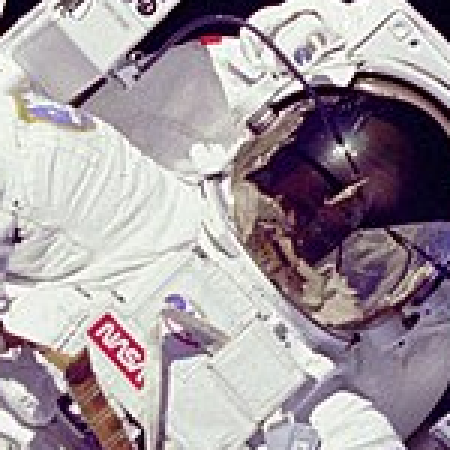
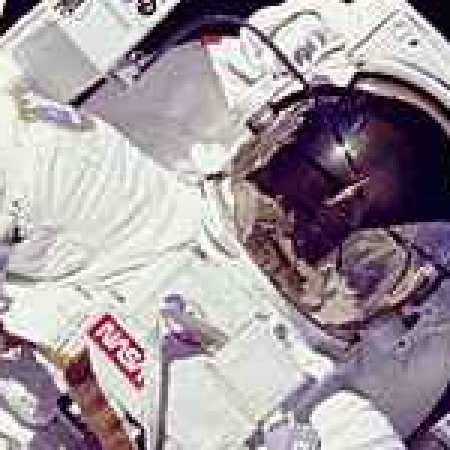
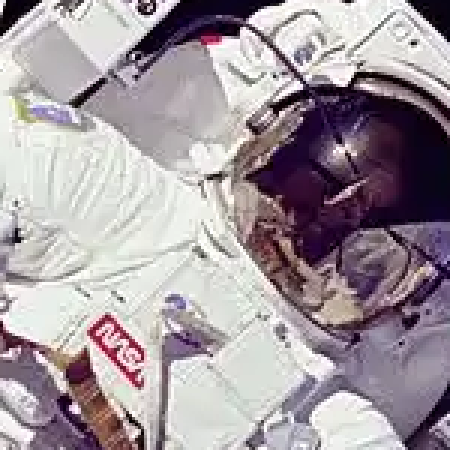
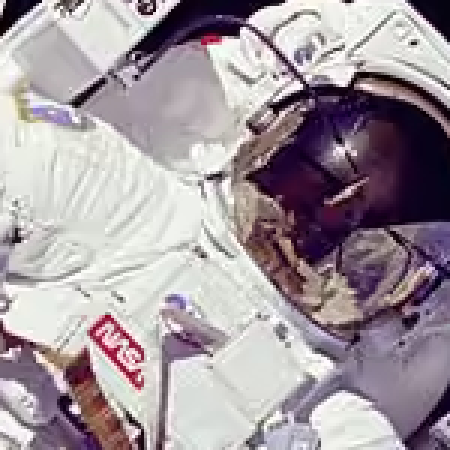
A fair objection is that quality 80 in one format is not quality 80 in another. So the next test fixes the file size instead. We saved the photo as a JPG at quality 40, which came to 50 KiB, then found the highest WebP and AVIF quality that fit in the same size. Here is the area around the helmet, enlarged three times so each pixel is visible.
Original pixels
the reference
JPG, quality 40
50 KiB
WebP, quality 58
50 KiB
AVIF, quality 53
49 KiB
Three lossy formats at the same file size, around 50 KiB. The JPG shows blocks and has lost the lettering on the patch. WebP is smoother. AVIF keeps the most detail.
At the same size, the JPG scores 33.2 dB on PSNR, WebP 35.4 dB and AVIF 36 dB. Higher means closer to the original pixels. PSNR is a rough tool and does not always match what people see, so treat the pictures above as the real evidence.
Test 2: a graphic with text
Now the opposite kind of image: a 960 × 540 interface card, with sharp text, flat color fills and a chart. Percentages here are measured against the PNG.
- JPGquality 9553 KiB+23%
- PNGlossless43 KiB
- JPGquality 8034 KiB−21%
- GIF64 colors23 KiB−47%
- WebPquality 8018 KiB−58%
- PNG64-color palette17 KiB−60%
- WebPlossless15 KiB−65%
- AVIFquality 6012 KiB−72%
File size of one interface graphic. Here the JPG is not much larger than the PNG, and at quality 80 it is actually smaller, which is why you have to look at the picture and not only the size.
This result surprises people who have heard that PNG is always smaller for graphics. A lossy JPG at quality 80 was indeed lighter than our lossless PNG, but it paid for that in the text. The PNG here was also not run through an optimizer such as oxipng or pngquant, which would shrink it. Lossless WebP did much better than the average Google reports, at 65% smaller than the PNG, because a graphic with few colors suits it well.

PNG
43 KiB

JPG, quality 80
34 KiB

WebP, quality 80
18 KiB
A headline from the graphic, enlarged twice. The PNG is exact. The JPG has a faint haze around every letter, which is the ringing described earlier. It is subtle at normal size, but on small text it makes the type look dirty.
Test 3: chroma subsampling
JPG usually stores color at a quarter of the resolution, which the next test makes visible. We saved the same graphic twice at quality 80: once with 4:2:0 subsampling, the common default, and once with full-resolution color (4:4:4). The crop shows a saturated blue button next to a red tag.

Original pixels
the reference

JPG, 4:2:0
34 KiB

JPG, 4:4:4
42 KiB
Same quality setting, different color handling. 4:2:0 leaves a pale fringe where saturated colors meet white. Full-resolution color is cleaner but makes the file 24% larger.
On photographs the difference is hard to spot, which is why 4:2:0 became the standard. On text and thin colored lines it shows, which is one more reason to keep graphics out of JPG.
How to choose: a simple decision path
Go through these questions in order, and stop at the first that applies.
- Is it made of shapes, such as a logo, an icon or a chart? Use SVG. Export a PNG as a fallback only if an app cannot take SVG.
- Does it move? Use a short MP4 or WebM video when you can. If it has to be an image, use animated WebP or AVIF, and GIF only as a last resort.
- Is it a photograph or other continuous-tone image? Use AVIF or WebP on the web, with JPG as the fallback. Use JPG alone for email, chat and uploads.
- Is it a screenshot, diagram or anything with sharp text? Use PNG, or lossless WebP on the web.
- Does it need transparency? Use PNG, WebP or AVIF. Never JPG or GIF for soft edges.
- Will it be opened outside a browser, in an office app, a print shop or a form? Use JPG or PNG. They are the formats everything accepts.
To serve more than one format on a web page, let the browser choose with the picture element. It picks the first format it understands, and the plain img inside is the fallback that every browser can use. Google recommends always providing that fallback.
<picture>
  <source srcset="harbor.avif" type="image/avif" />
  <source srcset="harbor.webp" type="image/webp" />
  <img src="harbor.jpg" alt="Fishing boats in the harbor at sunrise" width="1200" height="800" />
</picture>
How to optimize images for a website
Choosing the format is only the first step. These habits change file size far more than switching formats does.
- Resize before you compress. Pixel count drives file size. A 4000-pixel-wide photo shown at 800 pixels wide carries 25 times more pixels than it needs. Use the resize tool first, then compress.
- Choose quality by eye. For JPG and WebP, try 75 to 85. For AVIF, try 50 to 65, because its scale is different. Zoom to 100 percent on faces, text and gradients, and lower the quality until you can just see a difference, then go one step back. The image compressor shows a side-by-side comparison.
- Match the format to the content. Photos in lossy formats, graphics in lossless ones, as in the decision path above.
- Remove metadata you do not need. EXIF can include the exact location where a photo was taken. Re-encoding an image in Imagefold removes it.
- Serve the right size to each screen. The
srcsetandsizesattributes let a phone download a small file while a desktop gets a large one. - Always set width and height. The browser then reserves the space and the page does not jump while images load.
- Lazy-load images below the fold, but not the main one. Add
loading="lazy"to images further down the page. Do not lazy-load the largest image at the top, because that delays it, and considerfetchpriority="high"for that one image. - Do not save a lossy file repeatedly. Keep the original and export a new copy each time you change something.
- Name files and write alt text for people. Google asks for short descriptive file names, alt text that describes the image in context without keyword stuffing, and a file extension that matches the real type.
<img
  src="harbor-800.webp"
  srcset="harbor-480.webp 480w, harbor-800.webp 800w, harbor-1200.webp 1200w"
  sizes="(min-width: 1024px) 720px, 100vw"
  width="1200"
  height="800"
  loading="lazy"
  alt="Fishing boats in the harbor at sunrise"
/>
Common image problems and how to fix them
| Problem | Likely cause | Fix |
|---|---|---|
| A transparent PNG turned black as a JPG | JPG has no transparency, and the converter filled the gap with black | Choose a background color when converting, for example with PNG to JPG |
| A photo looks blocky or fuzzy | Quality set too low, or the JPG was saved again many times | Go back to the original and export at a higher quality |
| Text looks smudged | The image was saved as a lossy format | Save screenshots and text as PNG or lossless WebP |
| The file is far too big | Too many pixels, or a photo saved as PNG | Resize first, then convert the photo to JPG or WebP |
| An iPhone photo will not open | The file is HEIC | Convert it with HEIC to JPG, or switch the camera to Most Compatible |
| A WebP is refused by an app or form | The app does not support WebP | Convert it with WebP to JPG or WebP to PNG |
| A photo appears sideways | An orientation tag that the app ignores | Rotate and re-save it, for example with the rotate tool |
| Colors look dull after exporting | A wide-gamut photo exported without a profile | Export for the web in sRGB |
| A GIF looks grainy and heavy | GIF cannot show a photo well | Use a short video or animated WebP |
Key takeaways
- Choose by content first: lossy formats for photographs, lossless formats for graphics, SVG for shapes.
- WebP is the practical default for the web. AVIF is smaller still, and needs a fallback. JPG and PNG remain the universal formats.
- HEIC is for storing photos on Apple devices, not for sharing them.
- Resizing to the display size saves more than any format change.
- Keep an original. Every lossy save loses something, and converting a JPG to PNG does not bring it back.